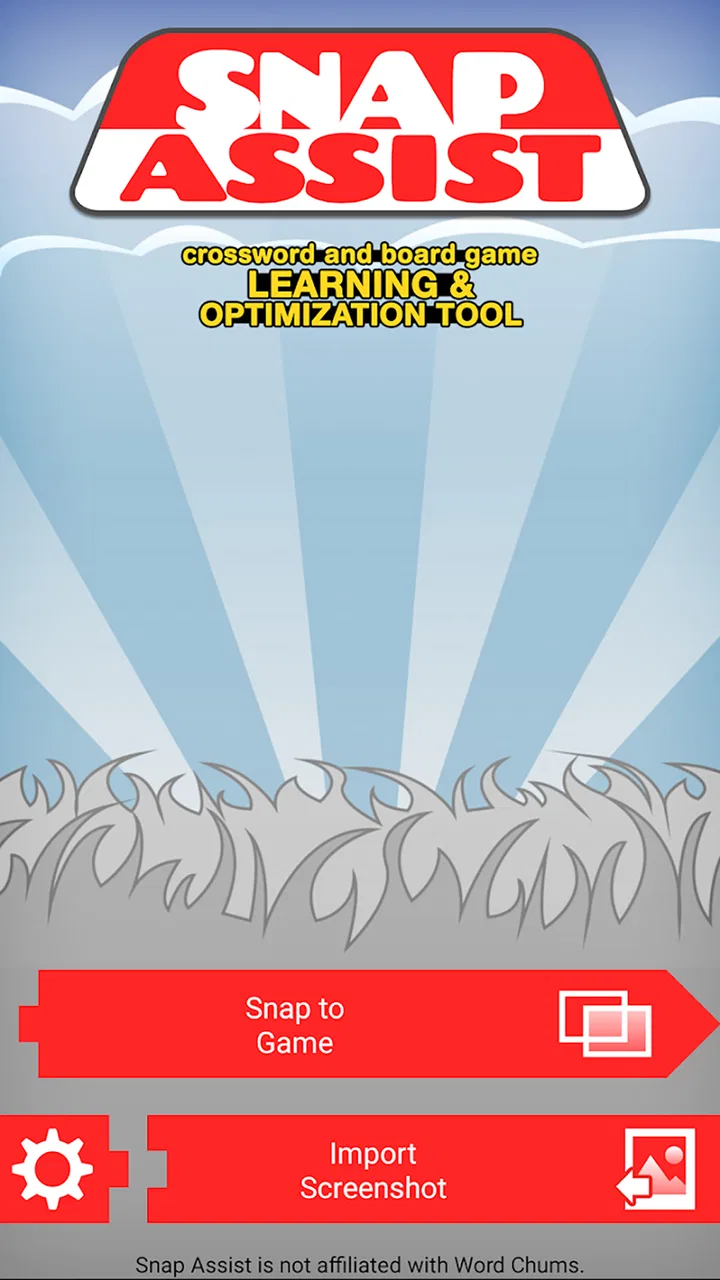
Snap Assist for Chums
- 4.0
- Rating
- 10.00K
- Installs
- Free
- Price

 Analysis by App-foxy
Snap Assist for Chums is a focused word-game companion from Firecracker Software LLC. I see it as a practical tool for players who already spend time with Word Chums and want help examining a board rather than simply guessing their next move. Its role is narrower than a full crossword game: it is built around learning and optimizing plays, with “Snap Assist” at the center of the experience.
I approached it less like a traditional game and more like a visual problem-solving aid. That distinction matters. If you want a self-contained word puzzle with its own levels, story, or daily challenges, this probably is not the right download. If you enjoy studying possible word placements and improving how you think through a Word Chums position, it has a more specific purpose. In my experience, that purpose becomes especially interesting when I look at who can comfortably read, control, and use it in different everyday situations.
How the board feels to read and navigate
The main appeal is the way the app turns a word-game position into something you can inspect. Rather than relying only on memory or repeatedly switching between a board and a separate word tool, Snap Assist is intended to support a more deliberate look at the letters and available opportunities. That makes it useful for a player who wants to understand why one move is stronger than another, not merely receive an answer.
You May Also Like

 Blood Strike: 2.5 Anniversary
Blood Strike’s Loadouts Turn Every Drop Into a Tactical Gamble
A close look at Blood Strike’s custom loadouts: how fast access to signature weapons reshapes its battle royale rhythm, rewards preparation, and narrows the gap between fights.

 Pandora - Music & Podcasts
Pandora’s Music Is Easy to Start, but Harder to Recover
Pandora’s strength is its low-effort path from a seed to a station. Its weak spot is how much confidence it asks you to place in connection, setup, and quiet recovery.

 8 Ball Pool
 Is Built on Rivalries, Rematches, and Routine
A close look at the rivalries, rematches, shared routines, and unanswered safety questions that turn a quick pool match into a persistent mobile community.

 Samsung Music
’s Quiet Strength Is Playing What You Already Own
Its reach comes less from spectacle than from dependable access to a personal library. That simplicity is both the app’s strongest retention engine and its ceiling.

 AccuWeather: Weather Radar
AccuWeather Review: A Quick, Clear Forecast for Everyday Decisions
For everyday plans, the best forecast is the one you can understand quickly. AccuWeather makes rain timing, radar, and local conditions easy to act on, with a few trade-offs.

 Hill Climb Racing
Why Hill Climb Racing Still Turns Crashes Into One More Run
A tiny car, a bumpy hill and one more upgrade: Hill Climb Racing keeps resurfacing because its simple chaos makes every near-miss feel personal.
More From Our News Desk



For readability, the most important factor is the amount of visual information on screen at once. A crossword-style board naturally asks the player to distinguish letters, spaces, word paths, and possible placements. Someone with comfortable near-screen vision can usually approach that as a compact puzzle, but a crowded board may become tiring for people who need larger text, stronger contrast, or more time to scan. I would use it in a calm setting first, then decide whether the display remains manageable during a longer session.
Navigation is most effective when I treat each position as a short inspection routine. I first identify the existing words, then look for open edges and crossing points, and only afterward consider the suggested possibilities. That order prevents the tool from becoming visual noise. It also gives the player a chance to learn the patterns behind a good move instead of tapping through every option without understanding the board.
The best way to use Snap Assist is as a thinking aid, not an automatic substitute for reading the board. That approach is valuable for new players who want to build vocabulary and for experienced players who want to review their habits. It also makes the experience less frustrating for anyone who processes information more slowly, because the player can pause between identifying the board and evaluating a choice.
The app is free to download, which lowers the barrier to trying that workflow. Its listing shows a 4.0 average from around 318 ratings, and the app has passed 10K+ installs. Those figures suggest a modest, specialized audience rather than a mass-market word-game community. I would not read that as a weakness by itself; a narrowly useful tool can be worthwhile even when it is not widely installed. It does mean that I would approach it with realistic expectations about polish and breadth.
Making visual review less tiring
One practical habit is to avoid using the tool while rushing through a turn. I get more from it when I enlarge my general device text where possible, increase room lighting without creating glare, and keep the phone at a comfortable distance. These adjustments are not special app features, but they make a meaningful difference when the task depends on distinguishing small letters and crossing patterns.
I also recommend checking one candidate play at a time. Comparing too many possibilities simultaneously can be difficult for anyone, and especially for players who find dense visual layouts tiring. A slower process—board, candidate, crossing letters, then result—turns the app into a sequence of manageable decisions.
That workflow has an educational advantage. When a move looks promising, I can ask what made it attractive: did it use a valuable opening, connect several letters, or create a useful position for the next turn? Even when the app helps locate an option, the player still controls the reasoning. This is more satisfying than treating every suggested word as an unexplained solution.
Different abilities, controls, and everyday situations
When I look at a word-game helper, I pay attention to whether it supports a player’s own reasoning or simply tempts them to skip it. Snap Assist for Chums is most interesting when I use its board-focused assistance to examine a difficult position, then compare the possibilities with my first instinct. That approach keeps the turn engaging and makes the next section’s focus on visual reading and interaction more useful.
Motor comfort and touch interaction
A word-game assistant can be demanding in small ways that are easy to overlook. Tapping precise board locations, moving between views, and entering or confirming a choice may be comfortable for one person and awkward for another. Players with limited fine-motor control may prefer using a stable surface instead of holding the phone, particularly when they need to inspect a position for several minutes.
I would also avoid using it one-handed in a moving vehicle or while walking. That is partly a safety issue, but it is also a usability issue: the board deserves attention, and hurried taps can make a careful word decision feel unnecessarily difficult. At a desk or table, I have more control over the phone angle and can take breaks without losing my place mentally.
People who experience hand fatigue may benefit from treating the app as a short consultation rather than leaving it open throughout an entire game. Review the position, identify a few possibilities, and return to the main Word Chums play. This reduces repeated tapping and keeps the assistant from becoming a physically demanding part of every turn.
Players who are comfortable with touch controls should find the concept straightforward, but I would not recommend it to someone seeking a hands-free experience. The product is built around visual examination and interaction, so it is a poor match for a player who needs to operate a word tool entirely through voice or another non-touch method. I cannot responsibly promise compatibility with every device-level accessibility feature, so testing it on the intended phone is important.
Vision, hearing, and sensory context
The visual side is central. A player with low vision may find the board difficult if letters or spaces are too compact for comfortable reading, even when the underlying word task is appealing. On the other hand, someone who prefers quiet, screen-based concentration may appreciate that the activity does not depend on a busy social interface or constant audio feedback. I found the concept naturally suited to a quiet room, where I can focus on the arrangement rather than compete with conversation or background activity.
For players who are sensitive to visual clutter, a disciplined routine helps. I would begin with the board’s existing words, cover the rest of the mental possibilities, and inspect only promising crossing points. The app becomes easier to understand when I impose that structure myself. This is a useful, non-obvious trade-off: the tool can reduce the effort of finding a move, but it may still require the user to manage the amount of information being considered.
Hearing differences are less likely to be the main obstacle in a word-based visual tool, but that does not automatically make the experience accessible to everyone. A person may have no trouble with audio and still struggle with small text, touch precision, or the pace of switching between the assistant and the game. Inclusive use depends on the whole interaction, not just whether sound is important.
Using it during an ordinary game
Imagine playing Word Chums during a lunch break. You have only a few minutes, the surrounding light changes as people move around, and you want to make a sensible play without turning the break into a study session. In that situation, Snap Assist can be useful if you already know how to capture or inspect the relevant position and can work through it quickly. I would use it to check a difficult board, not every easy turn.
That scenario also reveals a limitation. The app is not automatically convenient just because it is on a phone. A player may need to manage the original game, the assistant, and the mental connection between both screens. If switching context is tiring, the supposed help can become another task. For a short break, a simple dictionary lookup may be quicker when the problem is only an unfamiliar word. Snap Assist makes more sense when the challenge is placement and board optimization.
At home, the balance changes. A player can sit comfortably, take time to compare options, and use the assistant as a learning exercise. Someone helping a child or a family member can also discuss why a particular word works, turning a turn into a small lesson in spelling, crossing letters, and planning. The content rating is Everyone, so the general audience is broad, although individual reading and motor needs still determine whether the interface feels comfortable.
Who benefits most from the focused design
I think the strongest audience is made up of Word Chums players who enjoy improving through review. Beginners can use it to see how crossing letters affect a board, while experienced players can use it to challenge their first instinct. It may also suit a player who finds open-ended word searching overwhelming and prefers a visual starting point.
The app is less suitable for someone who wants a complete word-game package. It does not replace the social experience, turn-taking, or ordinary play of Word Chums. It also will not appeal to a person who considers outside assistance part of the fun only when it is completely passive. The value here comes from engaging with the position and deciding what to do with the information.
Compared with a standard dictionary, Snap Assist is more closely tied to the board and the practical question of where a word might fit. A dictionary remains better for definitions, spelling checks, and learning a word in context. Compared with a general crossword solver, this tool is more relevant to a Word Chums workflow, but less useful if your puzzles come from newspapers, books, or another game format. Compared with playing unaided, it offers more guidance but can reduce the satisfaction of discovering a strong move entirely on your own.
Where the experience still has friction
The largest barrier is dependence on a specific use case. If I am not playing Word Chums, the reason to keep Snap Assist available becomes much weaker. That narrow focus is honest and understandable, but it limits its value as an everyday word app. I would not install it expecting a broad collection of puzzles or a general vocabulary course.
There is also a potential learning trade-off. If I consult the assistant before attempting a board myself, I may improve my result without improving my judgment. To avoid that, I prefer to make a first guess, explain to myself why it seems good, and then use the tool to compare. This turns assistance into feedback. Players who only want the strongest move may not care about that distinction, but players seeking long-term improvement should.
The current version is 5.5.8, and the minimum operating system is Android 7.0. That makes the app relevant to some older devices, although the experience will still depend on the phone’s screen, touch response, and system settings. I would check the device before planning to use it on an older handset, especially if visual comfort is a priority.
Although the app is free, in-app purchases range from $3.99 to $49.99 per item. That is an important consideration for anyone managing a tight budget or allowing a child to use the device. I would review purchase controls before handing over the phone, and I would decide in advance whether the free experience is enough for my needs. The presence of optional purchases does not automatically make the app poor value, but it does mean “free” should not be confused with having no possible spending decisions.
Another barrier is context switching. A player with attention difficulties may find it helpful to have a structured board review, yet may also lose track when moving between Word Chums and an assistant. I would keep the process short and use a consistent order: inspect, choose, return. If that still feels disruptive, playing without the tool or using a simpler word reference may be the better choice.
My inclusive verdict
My overall view is positive but specific. Snap Assist for Chums is a useful companion for a particular kind of word-game player: someone who wants to examine Word Chums positions, learn from possible plays, and make more considered decisions. Its free entry point and Everyone rating make it easy to try, while the focused design keeps the purpose clear.
From an inclusive-use perspective, I would describe it as potentially helpful rather than universally accessible. The visual board review may work well for players who can comfortably read compact layouts and tap precise areas, and the quiet, self-paced nature can suit people who prefer to think without pressure. Players with low vision, motor limitations, sensory fatigue, or difficulty switching between apps should test it carefully and adjust their routine rather than assume it will fit automatically.
My favorite way to use it is as a second opinion. I attempt the move first, inspect how Snap Assist frames the position, and then decide whether the recommendation actually matches my goal. That preserves some of the game’s challenge while adding a useful lesson. It also prevents the tool from taking over the experience.
I would recommend it to regular Word Chums players who enjoy optimization and are comfortable with a visual, touch-based workflow. I would skip it if I wanted a standalone crossword game, a definition-focused dictionary, or a fully hands-free word experience. For the right player, however, Snap Assist for Chums offers a practical way to slow down, read the board more carefully, and turn difficult turns into opportunities to learn.
FAQs for Snap Assist for Chums
01What is Snap Assist for Chums and what does it do?
Snap Assist for Chums is designed to help users capture, organize, and share moments with friends or contacts in a more convenient way. Its main appeal is the social and practical assistance it provides while taking or managing snapshots. Before downloading, users should review the app’s supported devices, required permissions, and whether its features work independently or depend on invitations and other users being active on the platform.
02Is Snap Assist for Chums free to download and use?
The app may be available to download at no initial cost, but users should check the current store listing for details about advertisements, optional purchases, subscriptions, or premium features. Some functions may be limited in the free version, while additional tools could require payment. It is also worth confirming whether any trial automatically changes into a paid subscription before accepting the terms.
03What permissions does Snap Assist for Chums request?
Because the app is related to snapshots and social interaction, it may request access to features such as the camera, photo library, notifications, contacts, or internet connectivity. These permissions should be reviewed carefully during installation. Users can usually deny optional access or change permissions later in their device settings, although restricting certain permissions may prevent specific features from working correctly.
04Can I use Snap Assist for Chums safely and protect my privacy?
Users should treat every photo-sharing or social application carefully, especially when images may include personal information, locations, children, or other people. Review the app’s privacy policy, understand how uploaded content is stored and shared, and avoid granting access that is not necessary. Use strong account credentials, keep the app updated, and check sharing settings before sending snapshots to other users.
05Will Snap Assist for Chums work on my Android or iPhone?
Compatibility depends on the version of Android or iOS installed on your device, as well as the app’s current technical requirements. Before downloading, open the official Google Play or App Store listing and check the supported operating-system version, storage requirements, and recent update information. Older phones may install the app but provide a slower experience or lack access to newer camera and sharing features.
Pros
- Quickly organizes screenshots and shared images into useful categories.
- Simple interface makes it easy to find recent snaps without browsing every folder.
- Helpful for users who frequently exchange photos with friends or groups.
- Lightweight design keeps the app focused on its main sharing-assistance features.
- Can reduce clutter in the phone’s standard gallery and messaging apps.
Cons
- Its usefulness depends heavily on having an active group of friends using it.
- Privacy settings may require careful review before sharing personal images.
- Limited appeal for users who rarely send screenshots or photos to others.
- Organization features may feel unnecessary if your gallery is already well managed.
- Performance can vary depending on device permissions and media-library access.

Snap Assist for Chums
Gallery